
How to Add a White Border to a Photo on iPhone Pick a ratio, then set the margin size and color
You want a clean white border around the photos you post on Instagram. Or you want your posts to share the same shape, square or 4:5, or a photo sized 9:16 for a Story or Reel. You can do both by adding margins around the photo and choosing a ratio.
This page explains how to add a white border or margin to a photo on iPhone, the steps with White Border: Photo Margins, and which ratio to choose.

When to add a border
- Adding a clean white border to your Instagram posts
- Giving your posts a matching shape, square (1:1) or 4:5 portrait
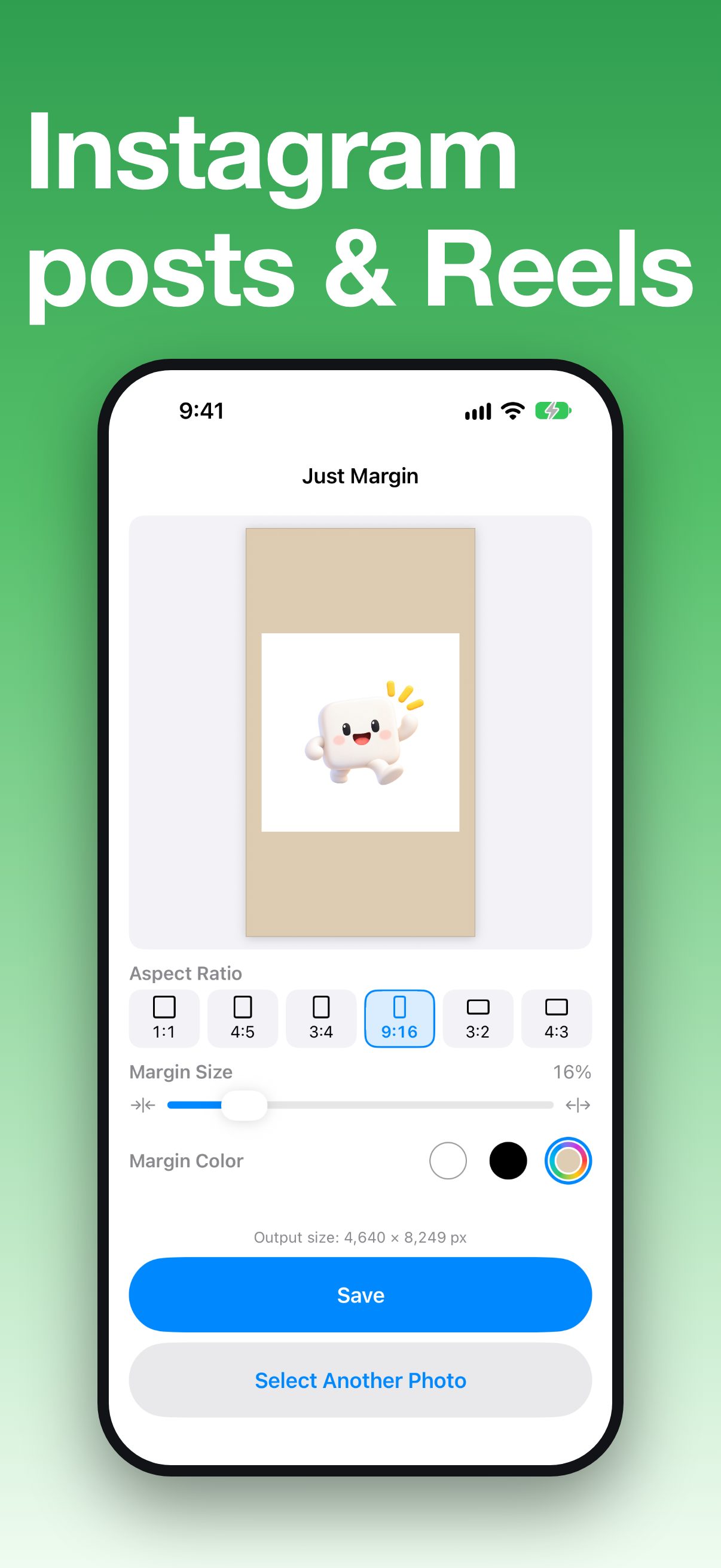
- Fitting the 9:16 size for Stories and Reels
- Making the margins black or any color you like, for a picture-frame look
Ways to add a border on iPhone
The Photos app has no border tool
When you edit in the Photos app, you can adjust light and color, but there’s no option to add a margin or white border around the photo.
Use a border app
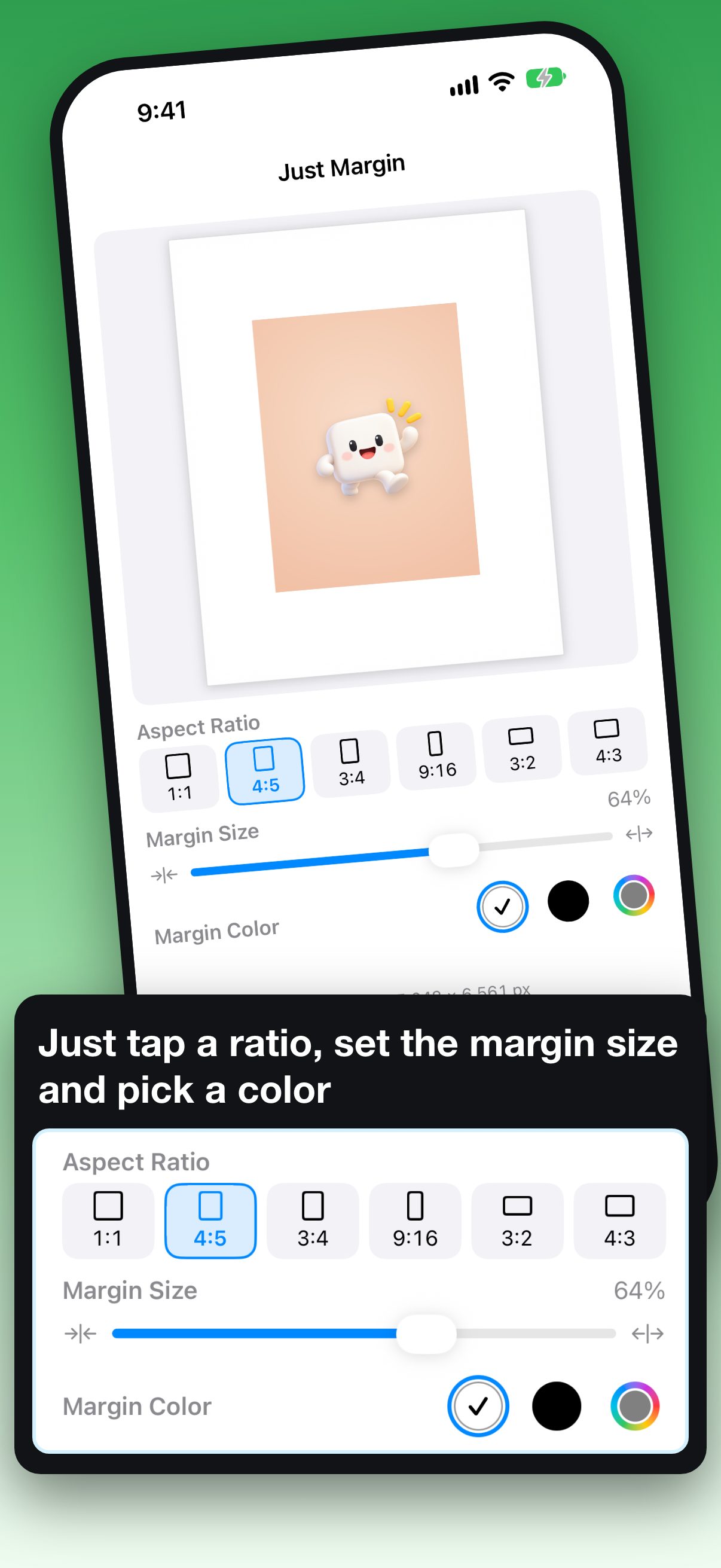
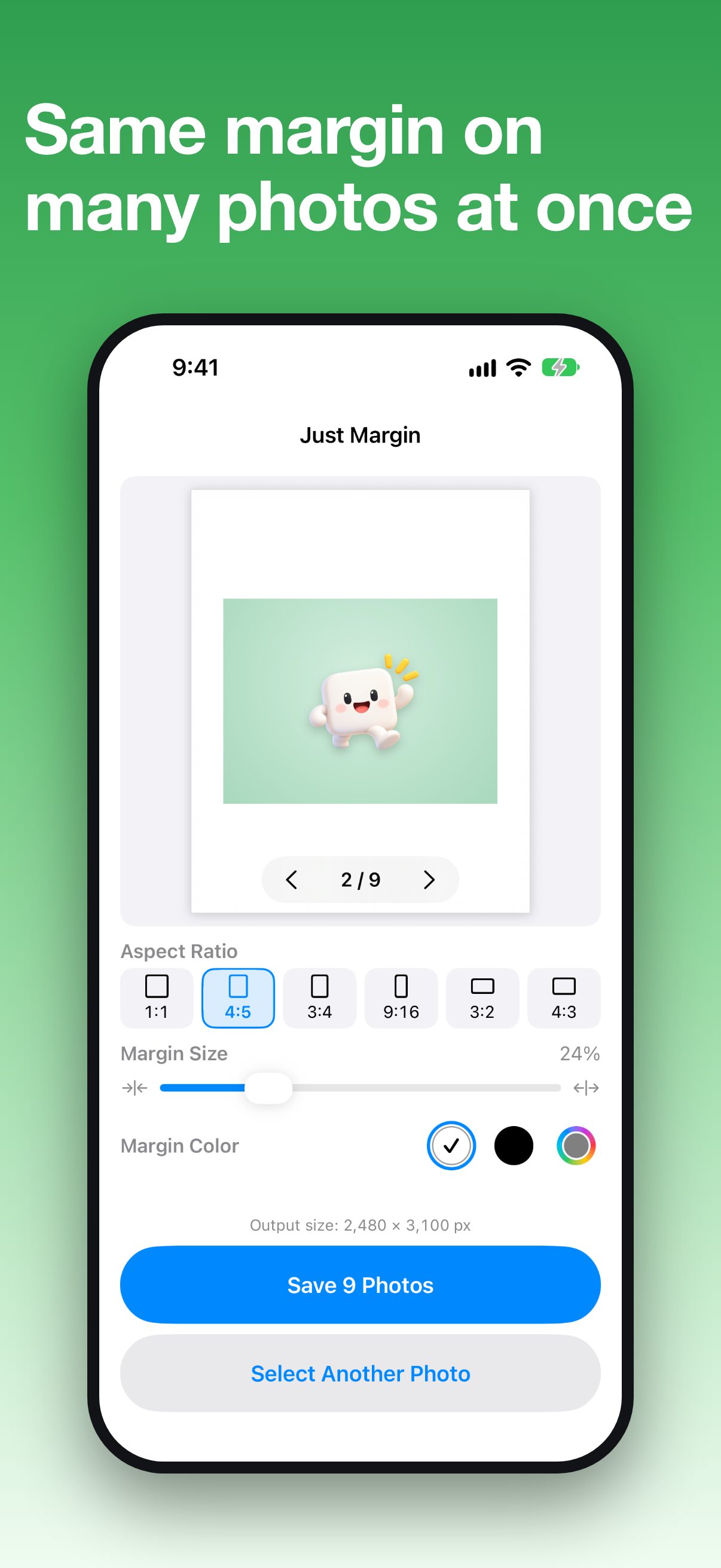
White Border: Photo Margins is an app that adds a white-border-style margin around your photo: just pick a ratio and move the “Margin Size” slider. Make the margins white, black, or any color you like.
Step by step
Open White Border and tap “Select Photo”
Under “Aspect Ratio”, tap a ratio
There are six: 1:1, 4:5, 3:4, 9:16, 3:2, and 4:3.
Move the “Margin Size” slider to the right
The further you move it, the wider the margins. Changes appear in the preview right away.
Choose a “Margin Color”
Pick White, Black, or Custom. Tap Custom to choose any color you like.
Tap “Save” at the bottom of the screen
You can check the output size (px) before saving. Your original photo stays as it is; the result is saved as a new photo.

Choosing a ratio
For a square Instagram post
Choose 1:1.
For a tall Instagram post
Choose 4:5. 3:4 is also available.
For Stories and Reels
Choose 9:16.
For a wide image
Choose 3:2 or 4:3.
Questions
Can I make a black or colored border?
Yes. Choose Black under “Margin Color”, or tap Custom to pick any color you like.
Does it overwrite my original photo?
No. Your original photo stays as it is; the result is saved as a new photo.
How much does it cost?
$3.00 as a one-time purchase. There are no ads, subscriptions, or in-app purchases.
Which devices are supported?
It works on iPhone and iPad, running iOS 17.6 or later.
Guides for other edits

White Border: Photo Margins
Pick a ratio and slide. Add a white border or any margin.
View on the App Store(external site)Prices shown are from the US App Store and may vary by country.