
How to Combine Photos on iPhone Join several photos top to bottom or side by side
You want to show a before and after next to each other, or send a few screenshots as a single picture. To do that, you combine several photos into one image.
This page explains how to combine photos on iPhone, and the steps with Photo Joiner.

When to combine photos
- Showing before-and-after photos side by side
- Sending several screenshots as one tall image
- Putting trip or event photos into a single picture
- Lining up images for a comparison or a document
Ways to combine photos on iPhone
Use the Shortcuts app
The Shortcuts app on iPhone has an action for combining images. It needs no extra app, but you have to build a shortcut yourself.
Use a photo joiner app
If you’d rather just pick and arrange, a dedicated app is quicker. Photo Joiner is an app that joins up to 20 photos top to bottom or side by side into one image.
Step by step
Open Photo Joiner and tap “Select Photos”
Choose up to 20 photos.
Under “Direction”, tap “Top to Bottom” or “Side by Side”
Set the order
Touch and hold a photo and drag it to change the order. Tap “+” at the end of the row to add more, or × to remove one.
Check the preview
Tap the preview to see the joined image full screen. The output size (px) is shown, too.
Tap “Save”
To start over, tap “Reselect Photos”.
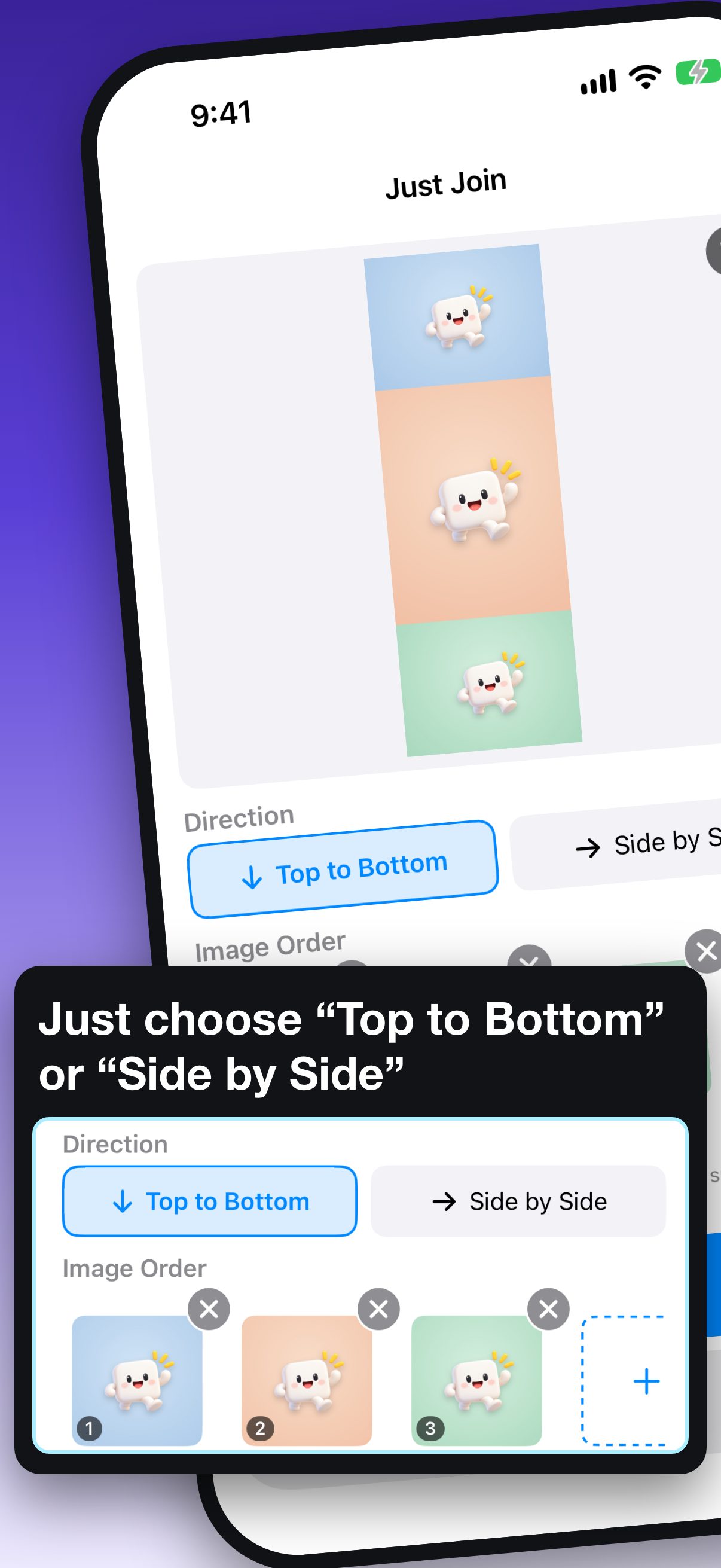

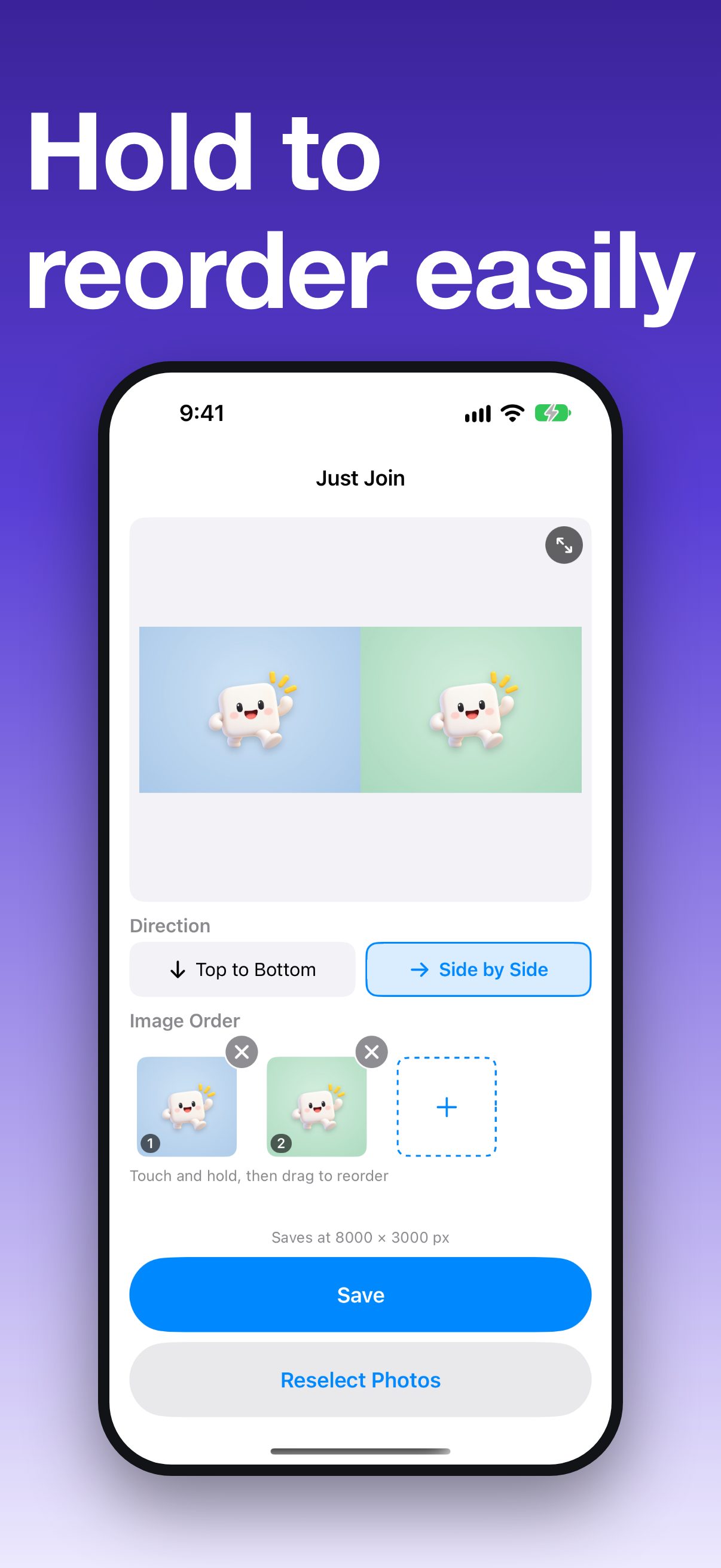
Which direction to use
Top to Bottom
Good for screenshots that continue, or photos meant to be seen in order.
Side by Side
Good for before-and-after shots, or comparing two things.
For one scrolling screen
To capture a single screen from top to bottom, Just Long Screenshot is the better fit, because it builds the image from a screen recording.
Questions
Can I change the order?
Yes. Touch and hold a photo and drag it into the order you want.
Can I join photos of different sizes?
Yes. Photos of different sizes are scaled to match the smallest one before they are joined.
How much does it cost?
$3.00 as a one-time purchase. There are no ads, subscriptions, or in-app purchases.
Which devices are supported?
It works on iPhone and iPad and Mac, running iOS 17.6 or later, macOS 14.6 or later.
Guides for other edits

Photo Joiner: Before & After
Combine photos into one image, side by side or top to bottom.
View on the App Store(external site)Prices shown are from the US App Store and may vary by country.