
How to Reduce a Photo’s File Size on iPhone Compress an image to fit a limit like “under 1 MB”
You try to attach a photo to an online form and it says the image must be under 1 MB. Or a photo is too large to send by email. Photos taken on an iPhone are often bigger than upload limits allow.
This page explains how to reduce a photo’s file size on iPhone, and how to compress it to a specific size with Photo Compressor.

When you need a smaller file
- A form or website has an upload limit, such as under 1 MB
- A photo for an application has to fit a set file size
- You want photos that are easier to send by email or message
- You want lighter images for a website or blog
Ways to reduce file size on iPhone
Choose a size when you send by Mail
In the Mail app, when you send a photo as an attachment you can choose Small, Medium, Large, or Actual Size. That’s enough if you’re only emailing it. It doesn’t let you aim for a specific target, such as under 1 MB.
Compress to a target file size
When the limit is a specific number of MB or KB, an app that lets you set the target is the surest way. Photo Compressor is an app that compresses a photo to fit under the size you tap or enter.
Step by step
Open Photo Compressor and tap “Select Photo”
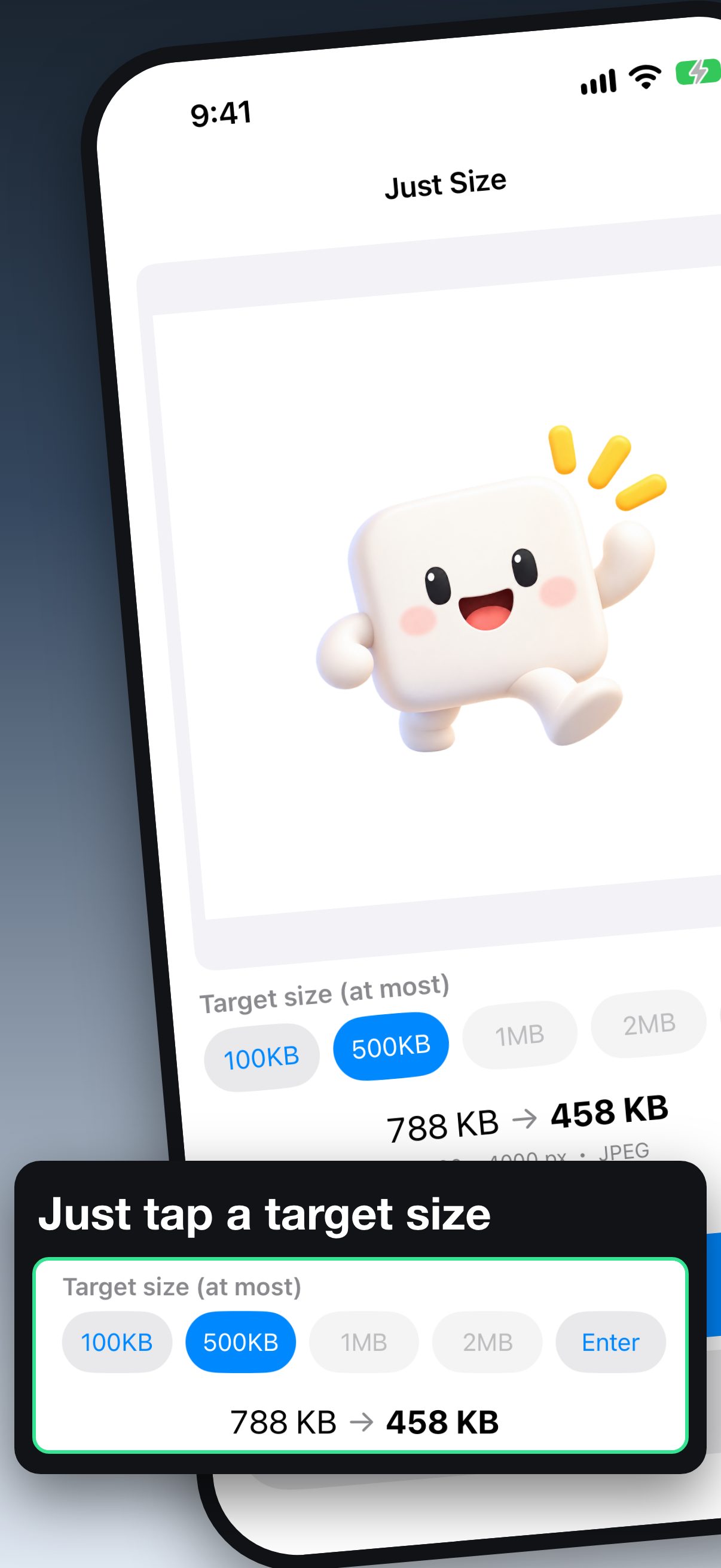
Its current file size is shown.
Tap a target size
Choose ≤100KB, ≤500KB, ≤1MB, or ≤2MB. The photo is compressed right away. (Buttons for sizes larger than the photo can’t be tapped.)
For any other size, tap “Enter”
Set it in KB or MB, such as 300 KB.
Check the compressed size and the quality guide
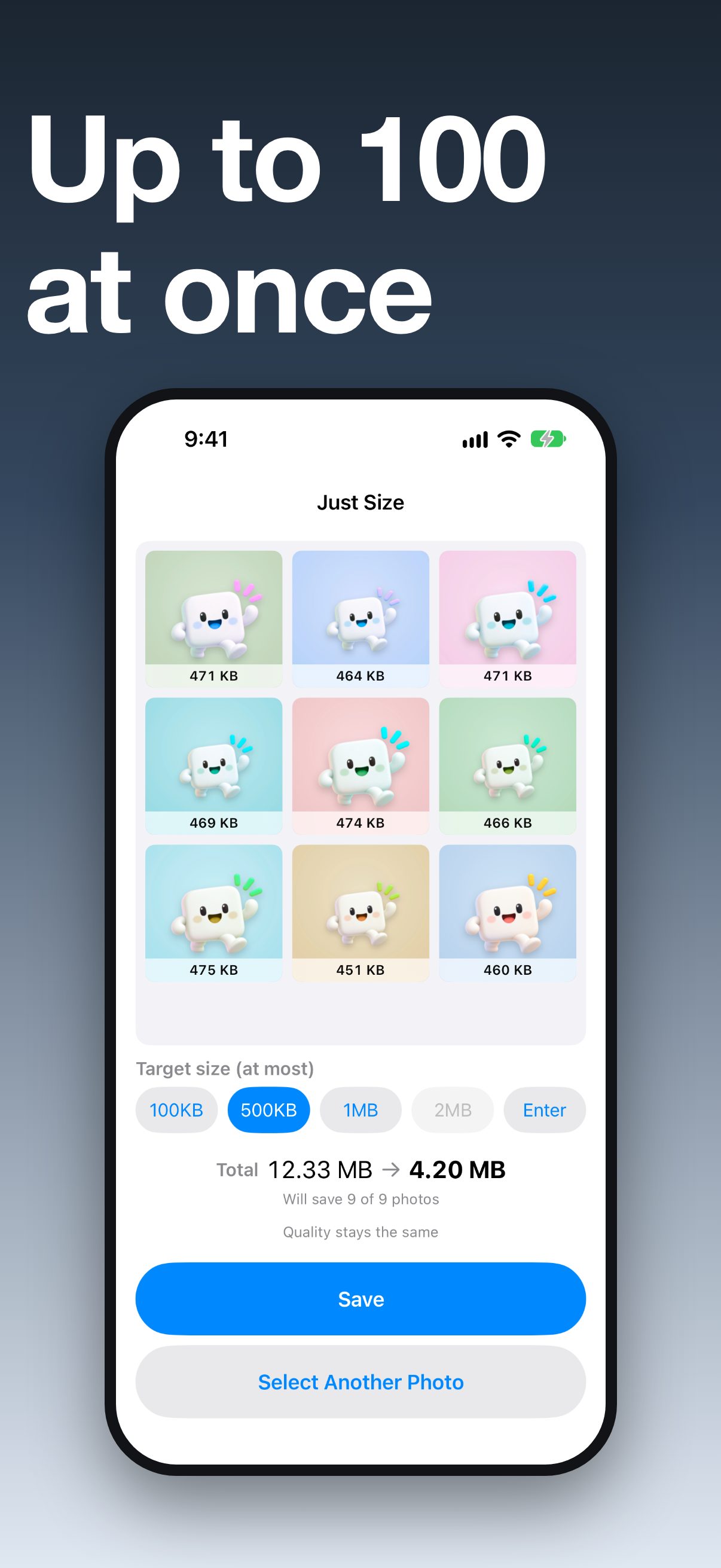
The app automatically finds the highest quality that fits under the target, and shows a guide such as “Quality stays the same.”
Tap “Save”
Good to know
File size and dimensions are different things
File size is how heavy the file is, in KB or MB. Dimensions are the width and height in pixels. If you’re asked for specific pixel dimensions, such as 1000 px wide, Image Resizer is the better fit.
KB and MB
1 MB is about 1,000 KB, so a 500 KB limit is about half of a 1 MB limit.
HEIC photos are saved as JPEG
HEIC photos are converted and saved as JPEG, so you can upload them even to websites that only accept JPEG.
Questions
Which option gets a photo under 1 MB?
Tap ≤1MB as the target size. The photo is compressed to fit under that size.
Does it change the photo’s width and height?
Normally no. Only the quality is adjusted. If that isn’t enough to reach the target, the photo is scaled down slightly, keeping its aspect ratio.
How much does it cost?
$3.00 as a one-time purchase. There are no ads, subscriptions, or in-app purchases.
Which devices are supported?
It works on iPhone and iPad and Mac, running iOS 17.6 or later, macOS 14.6 or later.
Guides for other edits

Photo Compressor to KB/MB
Just tap a target size to make a photo lighter.
View on the App Store(external site)Prices shown are from the US App Store and may vary by country.