Until Payday: Paycheck Budget An iPhone app that shows what you can spend until payday
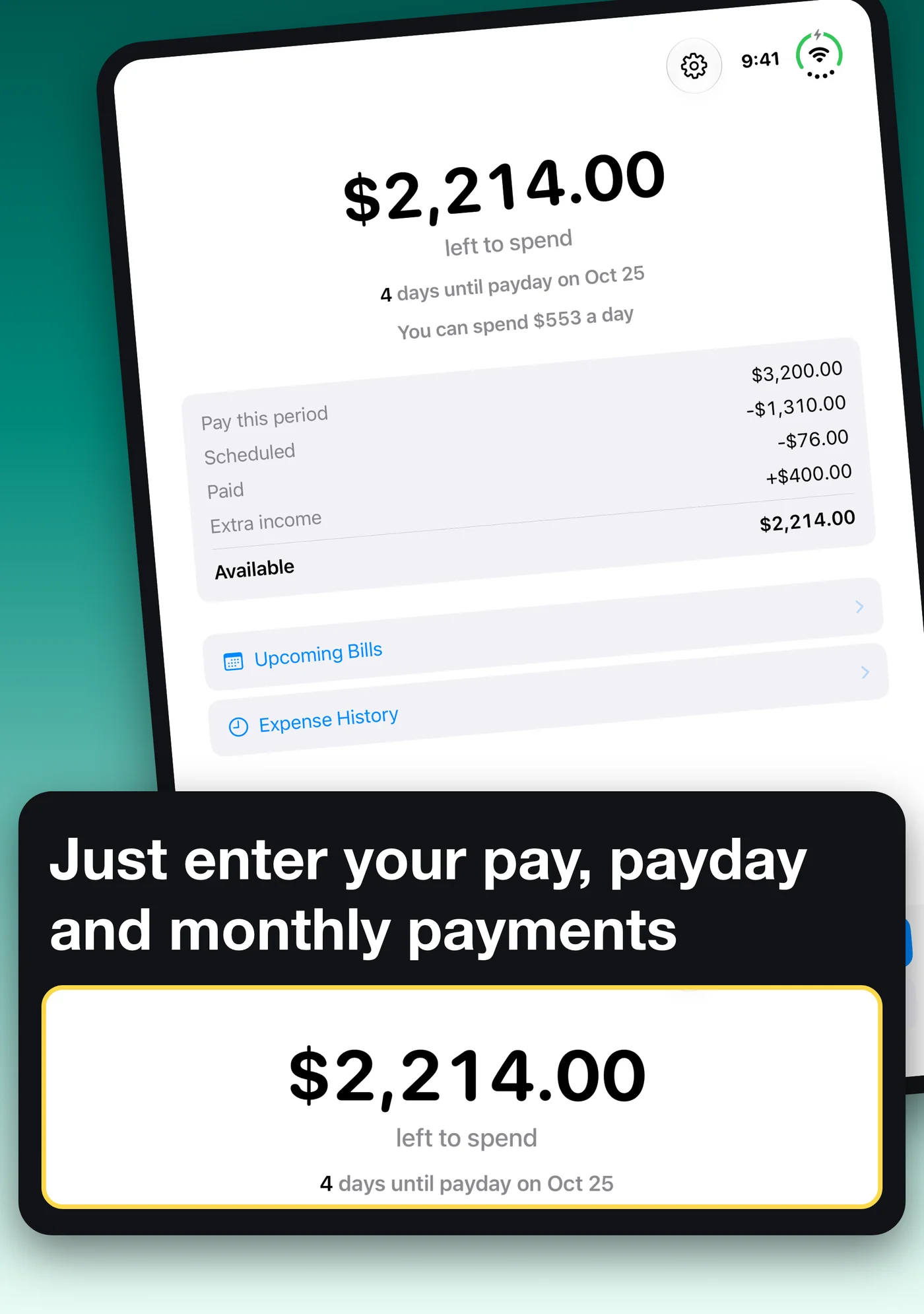
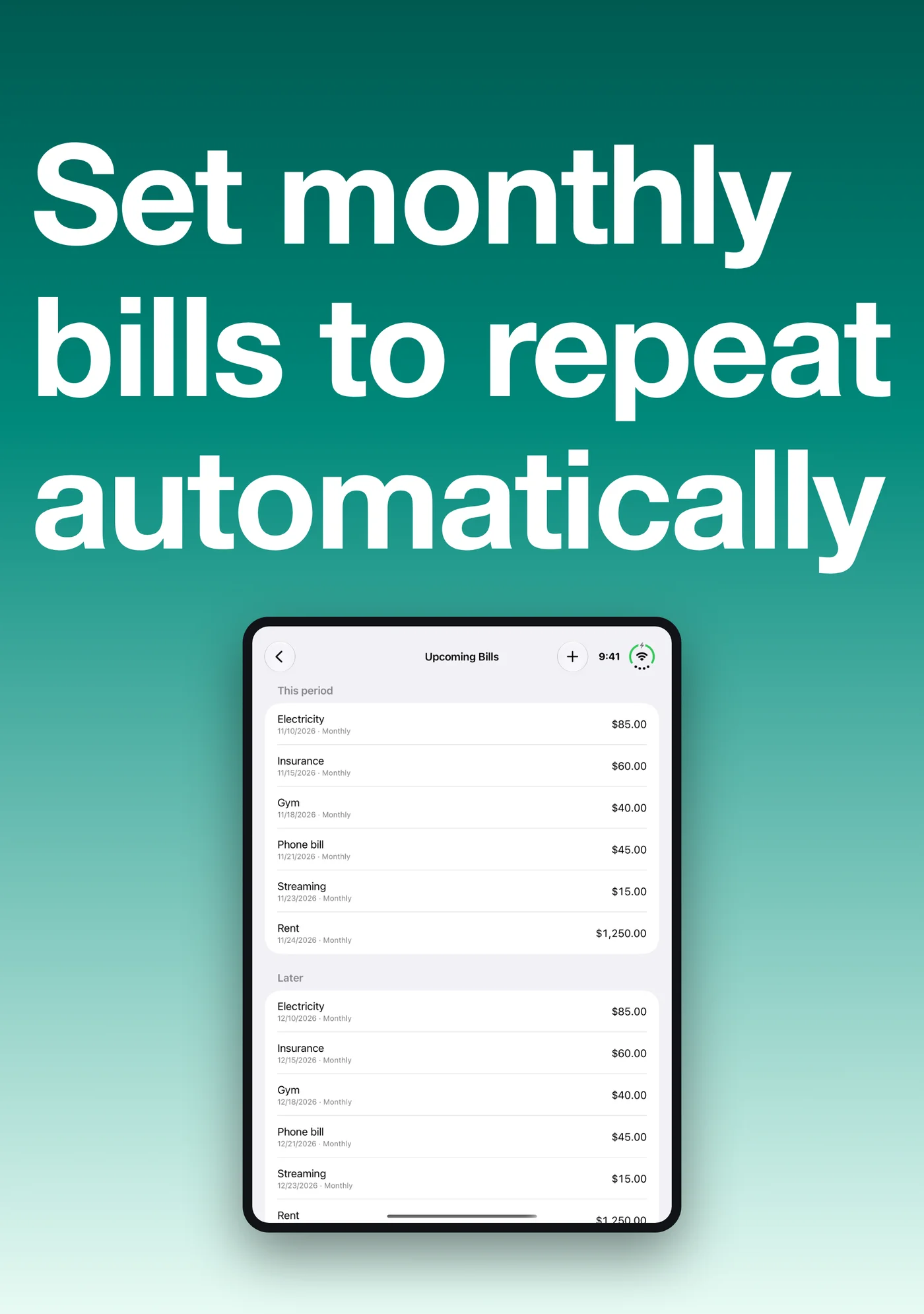
Just enter your pay and payday, and see what’s left to spend. Fixed monthly bills such as rent, subscriptions and card payments only need to be entered once under Upcoming Bills. Set them to repeat and they’re deducted automatically, with no need to enter them again every month. What’s left, the days until payday and your daily spending amount appear in large type at the top of the main screen. Made for people who don’t need the detailed calculations of a spending tracker or household budget.

No ads. No in-app purchases.
Optimized for iPhone Duo: easy to use open or closed, in portrait or landscape.
- Price
- $3.00 (one-time purchase)
- Devices
- iPhone
- Requires
- iOS 17.6 or later
- Category
- Finance
- Privacy
- Data Not Collected
- Languages
- English, Dutch, French, German, Italian, Japanese, Korean, Polish, Portuguese, Simplified Chinese, Spanish, Swedish, Traditional Chinese, Turkish
What Until Payday does
Rent and subscriptions, set aside first
Upcoming bills such as rent, subscriptions and card payments are deducted automatically every month once you set them to repeat. No re-entering them each month.
What’s left to spend
Your pay minus upcoming bills and money spent is shown largest, as Available.
Days left and a daily amount
See how many days are left until payday and how much you can spend per day.
Home Screen and Lock Screen widgets
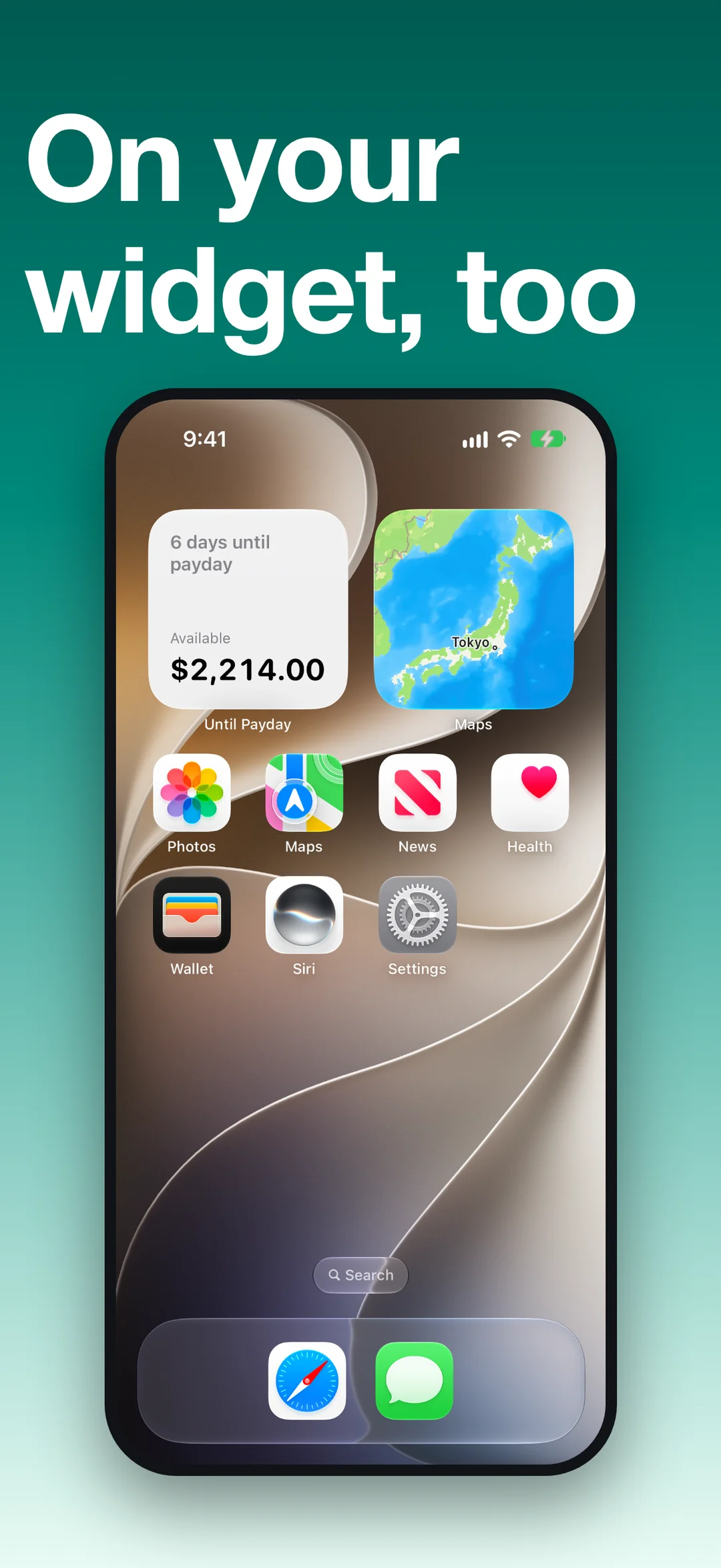
Check the amount you can spend and the days until payday without opening the app.
A new period on payday
When payday arrives, the app switches to the next period automatically. Look back at earlier periods in Expense History.
See when you overspend
If you overspend, the amount you’re over is shown.
Stays on your iPhone
Your data is stored only on this iPhone. No account is needed, and there are no ads. Currencies from around the world are supported.
When it helps
- Knowing how much you can still spend until payday
- Setting aside rent and subscription payments first
- Avoiding running short at the end of the month and keeping spending in check
- Dividing what’s left by the remaining days to see a daily amount
- Skipping the detail of a full budgeting app
Questions
Do I have to enter rent and subscriptions every month?
No. In Upcoming Bills, set Repeat to Monthly and the bill is added automatically from the next month on and deducted from what you can spend. A weekly option is also available.
What if I’m not paid monthly?
Set the Pay cycle to Not monthly and enter your Next payday.
Can I delete an expense or bill?
Yes. Swipe an item to the left in the Upcoming Bills or Expense History list, including items from earlier periods.
Can I add extra income?
Yes. Use the Add Extra Income button.
Where is my data stored?
Only on your iPhone. No account is needed. You can also erase everything with Delete All Data in Settings.
How much does it cost?
$3.00 as a one-time purchase. There are no ads, subscriptions, or in-app purchases.
Which devices are supported?
It works on iPhone, running iOS 17.6 or later.
Does it work on iPhone Duo, the foldable iPhone?
Yes. Until Payday: Paycheck Budget is an app optimized for iPhone Duo. It’s easy to use on the big inner screen or the outer screen, in portrait or landscape.
How to use Until Payday
Click or tap to enlarge
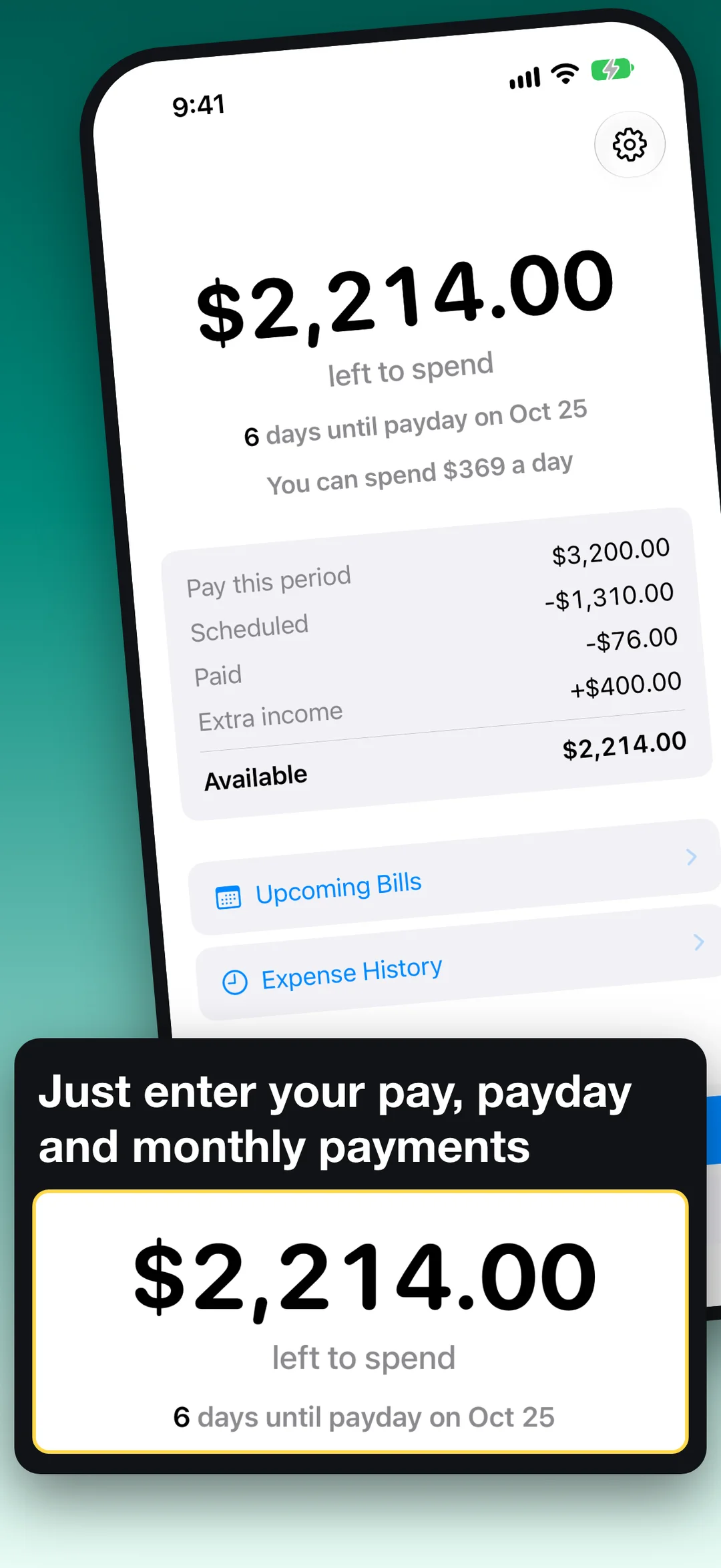
- On the first screen, enter your Pay amount, choose a Pay cycle (Monthly / Not monthly) and your Next payday, then tap Start.
- For bills you know are coming, such as rent or subscriptions, tap Upcoming Bills on the main screen, tap + at the top right, and enter the amount and due date. Set Repeat to Monthly and it’s added automatically from the next month on (a weekly option is also available).
- When you spend money, enter the amount with the Add Expense button at the bottom of the main screen.
- To delete an item in the Upcoming Bills or Expense History list, swipe it to the left.
Optimized for iPhone Duo
The layout is optimized for the large inner screen of an open iPhone Duo.
SQUARE PICK
Square tries Until Payday: Paycheck Budget
I use this one!


Until Payday: Paycheck Budget
See what you can still spend until payday, at a glance.
View on the App Store(external site)Prices shown are from the US App Store and may vary by country.
Want all eight apps? Get Dake Apps Complete ($9.99)(external site)


